 On the FridgeDoorOpen the app
Thanks for testing
On the FridgeDoor is a family planner built around one idea: no one carries it all. Meals, the shopping list, chores, plans and birthdays live in one place that the whole household can see, so it isn’t all in one person’s head.
It’s early, and you’re one of the first families to use it. Here’s what would help most:
Use it for two weeks, as a household. Get the other adults on it if you can, and children too if they’re old enough. Then tell us what worked, what confused you and what you wish it did. There’s a “Send feedback” button in Settings, and we read every message.
Get started (about 5 minutes)
- On Android: get it from Google Play
Do these in order, signed in to the same Google account throughout:
- Join the tester group and tap Join group. Opened this from Facebook, WhatsApp or Messenger? Tap ⋮ and Open in Chrome first, and sign in with the Google account you use for the Play Store. Inside those apps Google often says “You don’t have permission”.
- Become a tester. If the page says it can’t find the app, wait a few minutes and try again.
- Install from Google Play. If Play says Item not found, Google hasn’t caught up yet: it can take a few hours after you become a tester. Try again later, from the Play Store app on your phone, signed in with the same Google account you used for the group.
Please install it this way, not from the browser, and stay in the test for the full 14 days. Google only lets the app go public once enough testers have.
- On iPhone: put it on your home screen
Open app.onthefridgedoor.com in Safari, tap the Share button, then Add to Home Screen. There’s nothing to download from a store yet.
From then on, open it from the icon, not the browser. The two keep separate copies.
- Answer the setup questions
Who’s in your family, what you’d like help with (meals, shopping, chores, tasks) and a few details like your shop day. It builds a starter meal plan, shopping list and chore chart from your answers, and you can change everything afterwards.
- Switch on sync
Type your email and then the code we send you. There are no passwords. Sync is what lets everyone in the household share the plan.
⚙️ Settings › Sync & sharing - Bring everyone in
Invite another parent sends a link to your partner or another carer. They sign in with their own email and see the same plan. 📱 Add a child’s device connects a child’s phone or tablet with no email or account. A child’s device shows a simpler app: their routines, chores and dinner, without shopping, gift reminders or the kitchen display.
⚙️ Settings › Sync & sharing, or 👪 Bring everyone in on Today
Opened an invite link but it went to the browser instead of the app? Open the app from its icon, tap Got a family code? and type the code from the message.
Your two-week try-list
One small thing a day, so you see every part of the app. Tick them off as you go (the ticks stay on this phone).
0 of 14 done
What each part does
☀️ Today
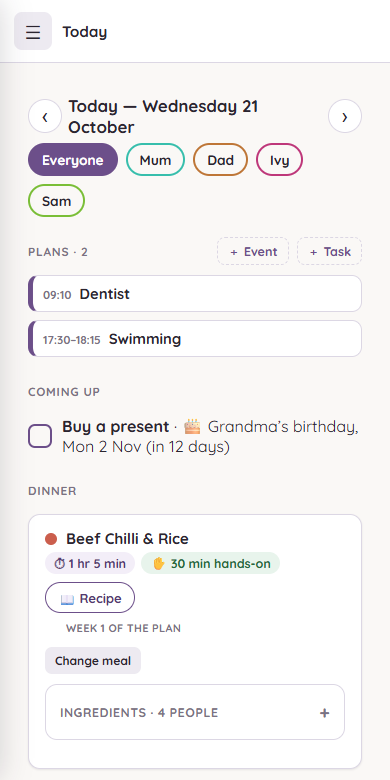
The day at a glance: plans, dinner with its ingredients, and chores. Swipe or tap ‹ › for tomorrow. On a device set to one person, it shows their day. Getting started lists anything setup left for later.
🍽️ Meal plan
Three ways to plan, chosen in setup and changeable under How we plan: Plan it for me (a rotation we build), I’ll choose, on repeat (you fill a 1, 2 or 4-week rotation) or Week by week (each week fresh, as far ahead as you like, with Copy last week). Plan the week on Today’s dinner card is the quick way in. The meal chooser starts with your usual meals and shows what you had or have planned that week. Every meal has a recipe with timers, quantities scale to your household, and you can add sides, dips and tweaks from the recipe or from + sides under a day. Tap ✕ beside one on Today to go back to the basic recipe for that day. Moved a meal by mistake? The bar at the bottom says what changed: tap Undo, or ↶ Undo on the Meal plan. Set how much meat, fish or tofu each person gets in ⚙️ Settings › Your household › Portion sizes. By shop shows the plan from shop day to shop day (what one shop buys), counts the dinners by main ingredient and warns if one meat comes up 3 times; ⋯ More has saved plans and which week of the rotation this is. Show all meals opens every meal to drag, with a search.
📖 Recipes
Every meal in one place: search, Our usual, Ours, Changed and Under 30 min. + Add a recipe takes your own, with its method and timers (a step that says “20 minutes” offers a 20 min timer), or Paste a recipe from a website or a note. ✏️ Edit on any recipe changes it for your household; Use the app’s recipe puts an app recipe back. Homemade lists the pastes and sauces you can make instead of buying. Each recipe now shows Contains (the 14 allergens, from the ingredients) and Check the labels (items like stock cubes and curry pastes that depend on the brand). Tell us if anything looks wrong. In ⚙️ Settings › Your household › Food needs and allergies you can add allergies, coeliac disease or diets for each person: meals that don’t suit someone are then marked “Not for …” in the meal chooser (with a Suits everyone filter), and each recipe says why and what to swap. Household size and shop day are now in ⚙️ Settings › Your household.
🛒 Shopping list
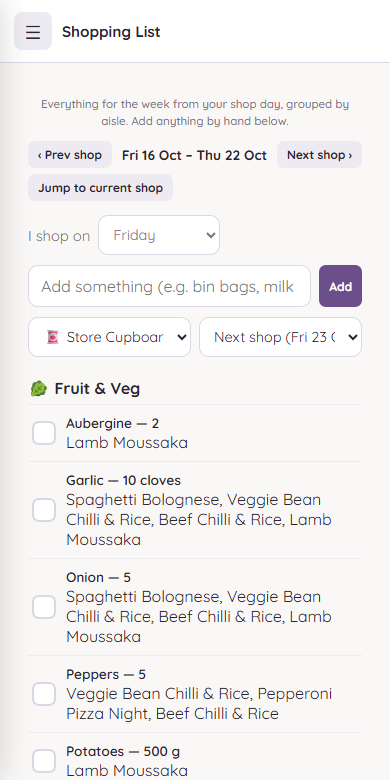
Built from the meals on your plan, grouped by aisle, for your shop day. Add your own items for this shop or every shop, one at a time or several at once. Shop in more than one place? Tap ⋯ on an item and choose where you buy it (Tesco, Aldi…); the buttons at the top show one shop at a time. Got a list in a message? Tap Share in that app and choose On the FridgeDoor.
🧻 Essentials
A tab on the Shopping list: the things you keep stocked. Tap what’s running low and it lands on the next shop, with a reminder the evening before if reminders are on.
🧹 Chores
Today’s jobs as a list or a board (a column each), This week as a grid of squares, and This month. Tick an Anyone job and say who did it, so the rewards go to them. 🏆 Rewards at the top opens the Rewards page. ⋯ on a job hands it over for the day or skips it. ✏️ Jobs: every job, one sheet each to change how often, who and what it’s worth, and How much? to switch between Light, Standard and Thorough. Rotates fairly and suits each child’s age.
🏆 Rewards
Each person’s rewards this week and where they came from (chores, routines, habits, extras). It says “stars” only for someone who collects stars. Prizes count each day, week or month and start again, so nothing is taken off: screen time at 5 a day and a squishy hunt at 25 a week both count the same stars. Tap Had it when it’s given. A prize can be for everyone, one person, or Together (everyone’s rewards added up). + Extra on a card (or ⭐ Ate up on tonight’s dinner) gives 1 to 5 for something that isn’t a job, like being kind or eating up a dinner they don’t love, with a reason they see on their card; Undo or ✕ under Lately takes them back. Pick what each person collects: a squishy (the bao bun comes in seven colours), an emoji, or make your own from any emoji on your phone.
☑️ Tasks
One-off jobs with a due date and an owner. Hand one over with 🤝 and they get an “Over to you” nudge.
🗓️ Calendar
Everyone’s plans in one view, including calendars you connect from Google, Outlook or iCloud.
📆 Coming up
Everything ahead in one list, nearest first: plans, tasks with a date, birthdays and their reminders, and paperwork. Pick This week, This month, Next 3 months, 3 to 6 months or 6 months or more, or several at once.
🎂 Occasions
Birthdays, anniversaries and celebrations, with reminders days ahead and gift ideas. Celebrations are only added if you choose them.
🌅 Routines & habits
Morning, after-school and bedtime routines with a time to be done by (teeth, shoes, bag by 8:00), and habits like reading 20 minutes. Children tick them on their phone, Today or the kitchen display, and earn rewards towards prizes. Add school holidays and trips so they pause, and kit days so PE kit is never forgotten. Choose whether a grown-up checks before the rewards count. Forgot to tick? A grown-up taps a name on the Routines page, or Fix on Today, to put any of the last 7 days right.
📄 Paperwork
Passports, MOT, car tax, insurance, boiler service and deals that end. Add the date once: it shows under Needs doing and in Today’s Coming up in good time, and Renewed sets the next date. Group the rest by date, person or type. Passports remind nine months ahead, because many countries want six months left. Parents only, hidden by the PIN.
🔔 Reminders and nudges
Each phone chooses its own reminders. Parents can send a quick 📣 Nudge from Today (“Time for bed”) to a person, everyone or the 📺 Screens (the kitchen tablet), with your own buttons (Edit buttons). Tick Urgent and it keeps buzzing until someone taps Got it, and you see “Seen by Sam”. Replies are “OK” or “On my way” straight from the notification. If the app is open, the nudge fills the screen. Connected calendars remind you too. In Settings, Reminders for the household lets parents get each other’s and the children’s reminders (both on to start). Open a timed event and tap + Add a reminder for an extra one, like the evening before.
🔒 Parent PIN
Set a PIN, then choose Lock for kids in the menu. Children can still see their day and tick chores, but settings, shopping and editing are hidden.
Sending feedback
In the app: ⚙️ Settings › Help & feedback. If you’re signed in to sync, it comes straight to us with your email so we can reply. Otherwise it opens an email to hello@onthefridgedoor.com.
The most useful things to tell us:
- Anything that confused you, or where you didn’t know what to tap next.
- Anything that looked wrong, like a quantity, a recipe step or a date. A screenshot helps.
- What you used most, and what you didn’t use at all.
- What would make you keep using it after the two weeks.
Good to know
Is it free? Yes, all of it, while we test.
iPhone or Android? Both. On Android we’ll also send you a Google Play link later, so you can install it from the Play Store. If you join that test, please stay in it for at least 14 days, because Google checks this before the app can go public.
Your data. Your plan is saved on your phone. With sync on, a copy is kept on our server in London so your household’s devices can share it. Nobody else can see it, there are no adverts and we never sell your data. You can delete your account at any time in Settings. The full details are in the privacy policy.
Something broke? Close the app and open it again; that usually brings the latest version. If it doesn’t, tell us what you were doing and we’ll sort it.